
Free Play Store Screenshot Generator
Create Android Screenshots with AI
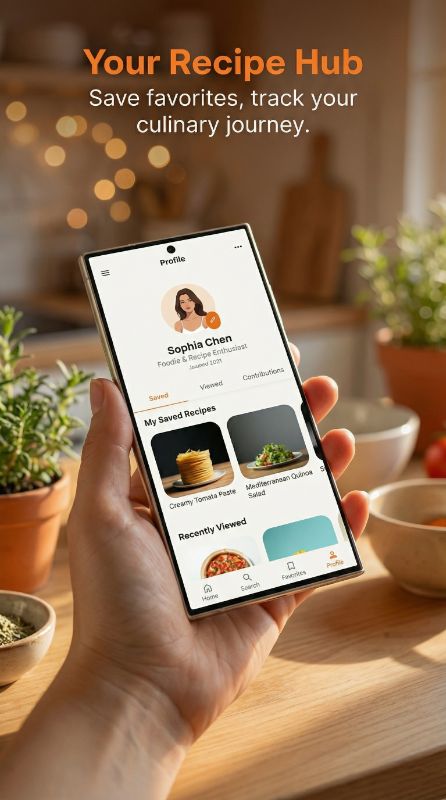
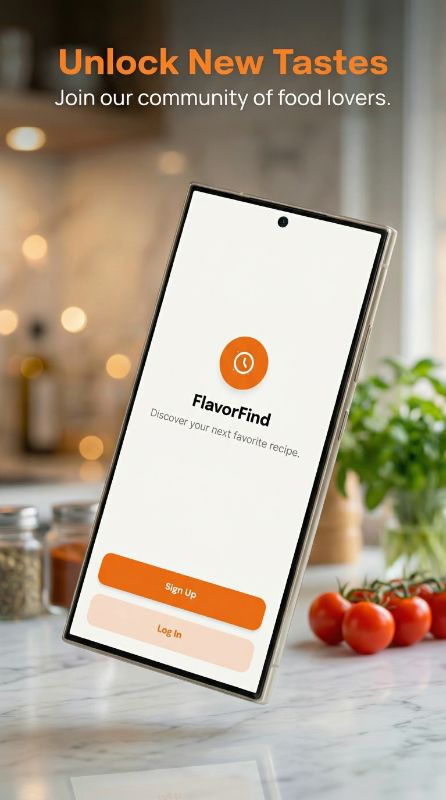
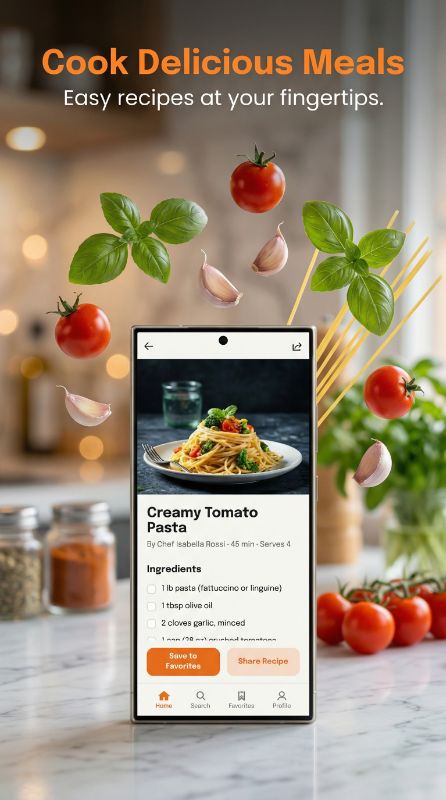
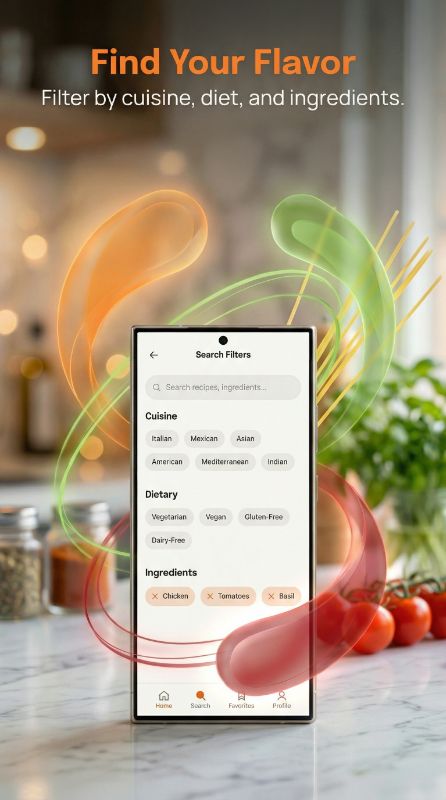
The fastest Google Play screenshot generator for Android apps. Generate Play Store screenshots with AI in under 2 minutes, exported at 1080 × 1920 so they pass Play Console's 2:1 check, with Pixel and Galaxy frames, AI-written headlines and a matching 1024 × 500 feature graphic.
Below: the Google Play size rules, why raw Android captures get rejected, the feature graphic, Play Console upload steps and how to qualify for recommendations.
3 free screenshotsNo credit card1080 × 1920, 9:16
4.6from 182 user ratingsReal ratings from real usersAverage of 182 in-app ratings from signed-in AppMockup users, collected by our in-app feedback prompt as of November 2026. Every rating counts, including low ones: 5★ 143 · 4★ 20 · 3★ 9 · 2★ 5 · 1★ 5.Raw Captures In, Play Store Graphics Out
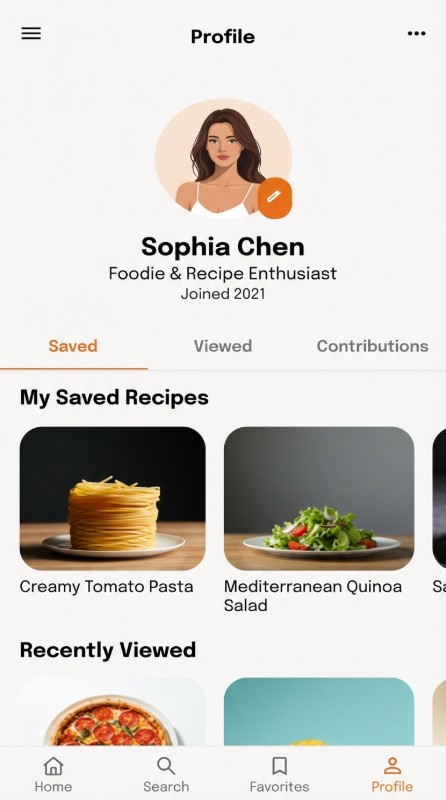
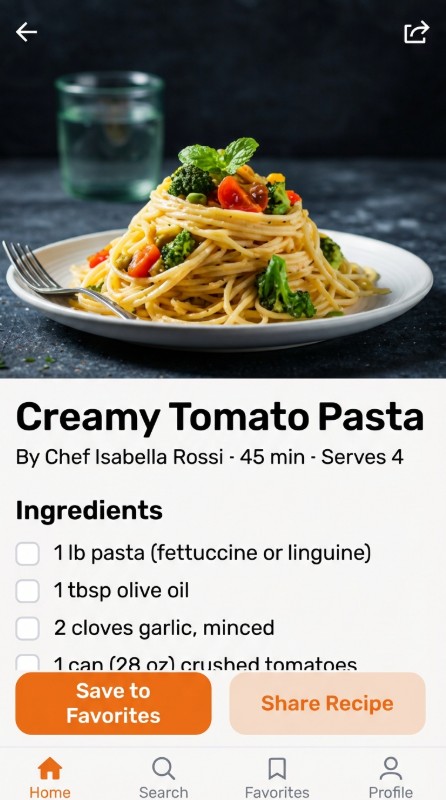
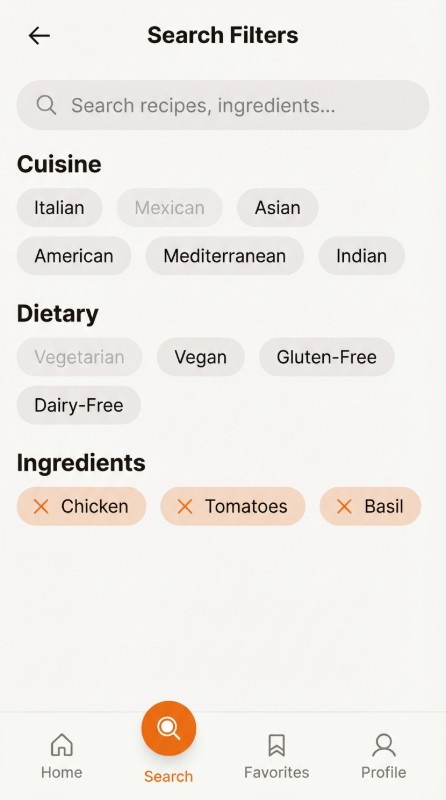
Swipe through real transformations made with AppMockup.
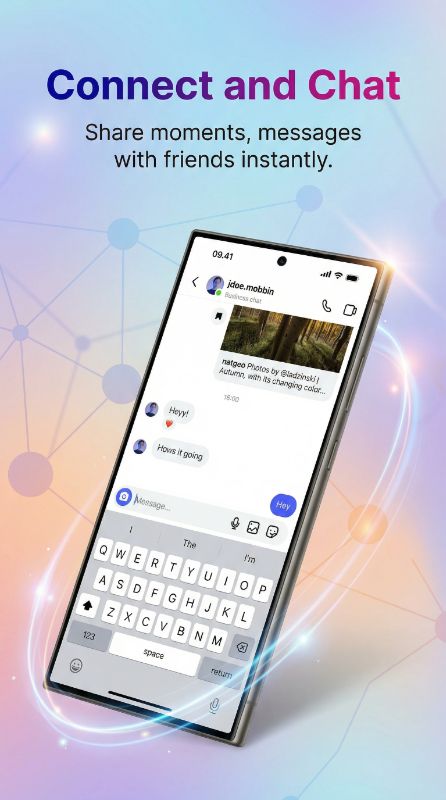
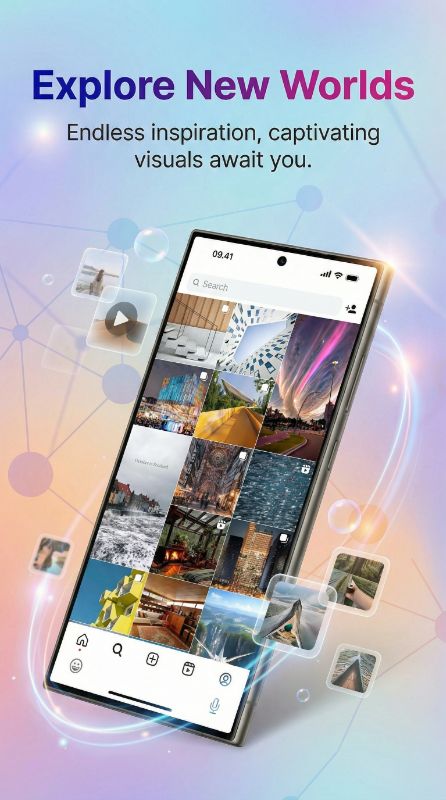
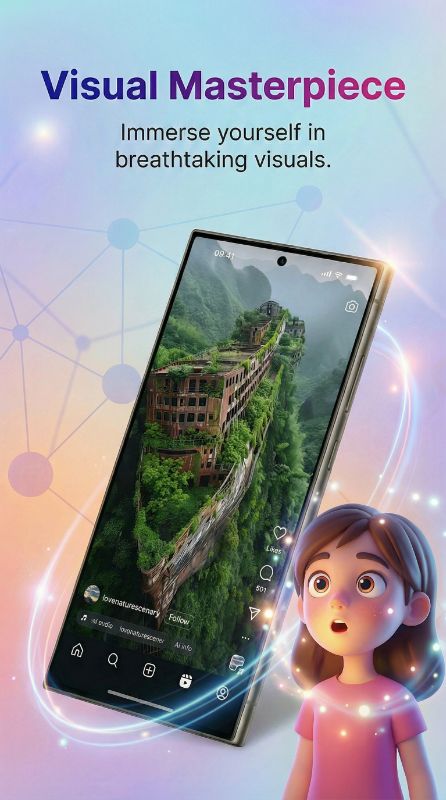
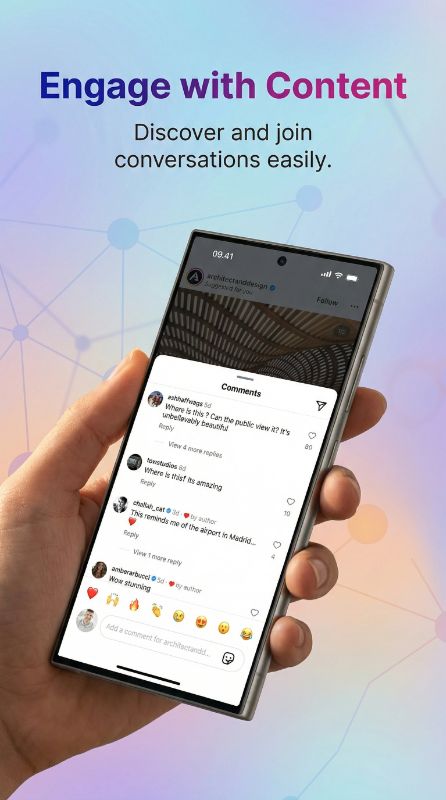
Google Play Screenshot Sizes and Rules
Google Play is looser than Apple about exact pixels but strict about format and ratio. These are the checks Play Console runs on every screenshot.
| Rule | Value |
|---|---|
| File format | JPEG or 24-bit PNG (no alpha) |
| Minimum dimension | 320 px on any side |
| Maximum dimension | 3840 px on any side |
| Aspect ratio limit | Longest side no more than 2× the shortest side (2:1) |
| Maximum file size | 8 MB per screenshot |
| Count to publish | At least 2 screenshots across your device types |
| Maximum count | Up to 8 screenshots per device type |
| Device type | Count | Dimensions | Ratio |
|---|---|---|---|
| Phone | 2–8 | 320–3840 px per side; 1080 × 1920 (portrait) or 1920 × 1080 (landscape) recommended | Up to 2:1; 9:16 or 16:9 recommended |
| 7-inch tablet | Up to 8 | 1080–7680 px per side for large-screen recommendations | 9:16 or 16:9 |
| 10-inch tablet | Up to 8 | 1080–7680 px per side for large-screen recommendations | 9:16 or 16:9 |
| Chromebook | Up to 8 | 1080–7680 px per side | 16:9 or 9:16 |
Wear OS, Android TV and Android XR have their own rules, listed with the app icon and TV banner in the full Google Play screenshot size guide. Check files you already have with the screenshot dimension checker.
Why Tall Android Captures Fail the 2:1 Rule
Google Play rejects any screenshot whose long side is more than twice its short side. Android phones moved to 19.5:9 and 20:9 screens years ago, so a screenshot taken with the power and volume buttons is usually too tall to upload, even though both sides are well inside the 320 to 3840 px range.
Cropping the status bar is not enough: you would need to cut 300 to 400 px of your UI. The fix is to place the capture inside a device frame on a 9:16 canvas, with the headline in the space above it. That is the layout AppMockup builds for every Android screenshot.
| Source | Capture size (px) | Ratio | Uploads to Play? |
|---|---|---|---|
| Google Pixel 9 Pro | 1280 × 2856 | 2.23 : 1 | No, over 2:1 |
| Google Pixel 8 | 1080 × 2400 | 2.22 : 1 | No, over 2:1 |
| Samsung Galaxy S24 | 1080 × 2340 | 2.17 : 1 | No, over 2:1 |
| AppMockup Play Store export | 1080 × 1920 | 1.78 : 1 (9:16) | Yes |
Play Store Feature Graphic Generator (1024 × 500)
The feature graphic is the wide banner Google Play shows on featured placements and as the cover of your promo video. It is required, and it must be exactly 1024 × 500 pixels in JPEG or 24-bit PNG (no alpha). A 2048 × 1000 "retina" version is rejected.
AppMockup's Feature Graphic generator, in the same studio as the screenshot generator, takes up to four of your screenshots plus your app name, places one to three of them in device frames and writes a short tagline you can replace. You can set a brand colour so the banner matches your screenshots. It costs 1 credit and is available on paid plans.
Design checks for the banner
- Keep the app name and tagline in the centre; edges can be cropped on some surfaces.
- Use large type. The banner is often shown at a fraction of its size on phones.
- Do not repeat your screenshots edge to edge; one or two framed screens read better.
- If you have a promo video, leave the centre clear enough for the play button.
- Export as JPEG or 24-bit PNG with no transparency.
How to Upload Screenshots in Play Console
Everything lives in the Graphics section of the store listing. Work through it in this order.
Open the main store listing
In Play Console, select your app, then go to Grow users → Store presence → Main store listing. Older accounts may show this as Grow → Store presence. Scroll to the Graphics section.
Upload the app icon and feature graphic
The icon is 512 × 512 PNG. The feature graphic must be exactly 1024 × 500. Both are required before the listing can be saved for review.
Add phone screenshots
Drop 2 to 8 phone screenshots into Phone screenshots. Use 1080 × 1920 portrait files so every one passes the 2:1 check on the first try. The order you upload is the order users see.
Fill 7-inch tablet, 10-inch tablet and Chromebook if supported
Each large-screen section takes up to 8 screenshots. Upload at least 4 of your real tablet layout to each section you support; leave sections empty for devices the app does not target.
Repeat per language
Use Manage translations to add localized listings. Each language can have its own screenshots and feature graphic; if you skip one, Play shows the default language graphics.
Save and send for review
Graphics changes go through review like any listing change. Check Publishing overview to send them, then confirm on the live listing from a phone.
Getting Into Google Play Recommendations
Google Play shows larger, screenshot-led formats in its recommendations and editorial rows, but only for listings whose graphics meet these guidelines.
Eligibility checklist
- Apps: at least 4 screenshots at 1080 px or larger, in 9:16 portrait (1080 × 1920) or 16:9 landscape (1920 × 1080).
- Games: at least 3 gameplay screenshots in 9:16 or 16:9 at 1080 px or larger.
- Tablets and Chromebooks: at least 4 in-app screenshots, 1080–7680 px per side, 9:16 or 16:9.
- Keep taglines and other text to about 20% of the image or less.
- Put the actual app interface in the first three screenshots.
AppMockup output already meets the size, text and real-UI points: 1080 × 1920 portrait, short headlines, and your own UI in every frame. You still need to upload at least four.
Custom store listings
A custom store listing replaces the description, screenshots and feature graphic for a chosen audience: users in specific countries, people who have not installed yet during pre-registration, or visitors from a particular Google Ads campaign or URL.
Example: a language-learning app might lead its India listing with the Hindi course and its Brazil listing with the English course. Generate a separate AppMockup set per listing, with the matching screen first and headlines in the local language.
Order the Android set for the search results row
Play search results and the top of the listing show the first few screenshots before anyone scrolls. Put the main task first, the feature that sets you apart second, and something that proves the result third. Material You colour themes, home-screen widgets and Wear OS companions are Android-only strengths; if your app has them, give them a screenshot rather than burying them in the description.
What It Costs
Your first 3 Play Store screenshots are free, with no credit card and no watermark. After that, each new screenshot, AI edit or feature graphic uses 1 credit (the Feature Graphic generator needs a paid plan). Swapping the device frame on a finished screenshot is free.
Paid plans start at $9.99/month for 25 screenshots, and unused credits roll over for up to 2 months. Cancel anytime.
Play Store & Android Screenshot FAQ
What size does the Play Store screenshot generator export?
Phone screenshots are exported at 1080 × 1920 pixels (9:16 portrait). That size is inside Google Play's 320 to 3840 px limit, stays under the 2:1 ratio cap, and meets the 1080 px minimum Google uses for recommendation formats.
Why does Play Console reject my raw Pixel or Galaxy screenshot?
Most current Android phones capture taller than 2:1. A Pixel 9 Pro capture is 1280 × 2856 (ratio 2.23) and a Galaxy S24 capture is 1080 × 2340 (ratio 2.17), so Play Console refuses them even though both sides are within the pixel limits. Place the capture on a 9:16 canvas, which is what AppMockup does with every Android screenshot.
Is the Google Play feature graphic required?
Yes. Every listing needs a feature graphic of exactly 1024 × 500 pixels, JPEG or 24-bit PNG with no alpha. It appears on featured placements and is used as the cover of your promo video. AppMockup's Feature Graphic generator, available on paid plans, builds it from your screenshots and app name for 1 credit.
How many Android screenshots should I upload?
Play Console needs at least 2 screenshots to publish and accepts up to 8 per device type. Upload at least 4 phone screenshots at 1080 px or larger if you want the listing to be eligible for Google Play's recommendation formats; games need at least 3 gameplay screenshots.
Do I need tablet and Chromebook screenshots?
Only if your app supports those devices, but they help: Google Play uses at least 4 large-screen screenshots (1080 to 7680 px per side, 9:16 or 16:9) to show your app in tablet and Chromebook recommendations. They should show your real large-screen layout. AppMockup's Android output is phone-first, so capture tablet layouts in an emulator and check them with the Dimension Checker.
How much text can I put on Play Store screenshots?
Google recommends keeping taglines and other text to about 20% of the image. Short headlines also survive the small thumbnails in search results better. Avoid ranking or award claims you cannot back up, such as "#1 app", and avoid pricing or "download now" text in your graphics.
Can I use different screenshots for different countries or audiences?
Yes. Custom store listings let you show a different description, screenshots and feature graphic by country, by pre-registration status, or to users who arrive from a specific Google Ads campaign or URL. Make a separate screenshot set for each listing that targets a different need.
Can I reuse my iPhone App Store screenshots on Google Play?
Not as-is. iPhone screenshots such as 1206 × 2622 have a ratio of about 2.17, which is over Google Play's 2:1 limit, and they show an iPhone frame and iOS interface. Use Android captures and Android frames so the listing matches what users install.
Which Android device frames are available?
AppMockup includes current Android frames such as Google Pixel 9 Pro, Pixel 8 and Samsung Galaxy S24 Ultra. You can switch the frame on a finished mockup and download it again without spending a credit.
Is the Play Store screenshot generator free?
Yes, to start. New users get 3 free credits with no credit card and no watermark, and each generation or AI edit uses 1 credit. Whether you search for a playstore screenshot generator, play store screenshot maker or google play screenshot generator, this is the same free tool. Paid plans start at $9.99/month for 25 screenshots, and unused credits roll over for up to 2 months. Cancel anytime.
Related Tools and Guides
- App Store & Play Store screenshot generator
The main generator, for teams shipping on both stores.
- iPhone & iPad screenshot generator
The iOS version: iPhone frames, iPad 13" and iPhone Duo conversion.
- AI app screenshot generator
How the AI writes headlines and builds backgrounds.
- Google Play screenshot size guide
Phone, tablet, Wear OS, TV and XR specs in one place.
- Screenshot dimension checker
Test files against the 2:1 rule and pixel limits.
- Pricing
Free credits to start, then monthly plans.
Ship a Listing That Passes Play Console First Time
Upload your Android captures, get 1080 × 1920 screenshots and a 1024 × 500 feature graphic, and paste them straight into the Graphics section.