
App Store Screenshots for Productivity & SaaS Apps
Productivity and SaaS apps sell calm and control over chaos. Your App Store screenshots need to show how the app removes friction from someone's day. AppMockup helps you create clean, benefit-led productivity screenshots that make organized feel effortless.
No credit card required3 free screenshotsNo watermarks
Before & After — Productivity Screenshots
See how raw screenshots become store-ready productivity marketing assets
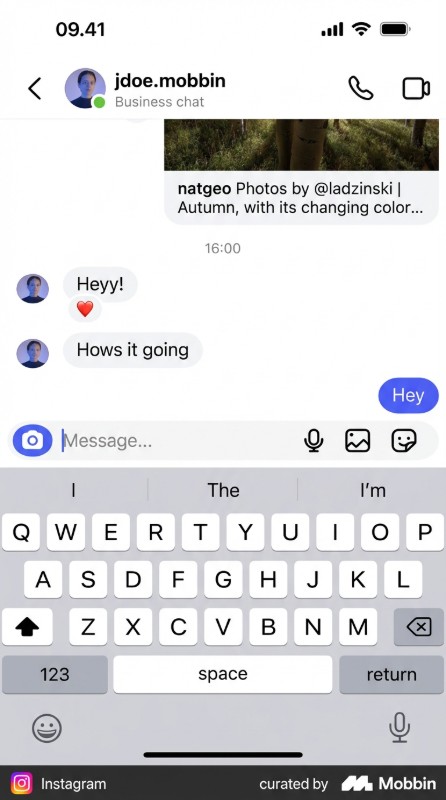
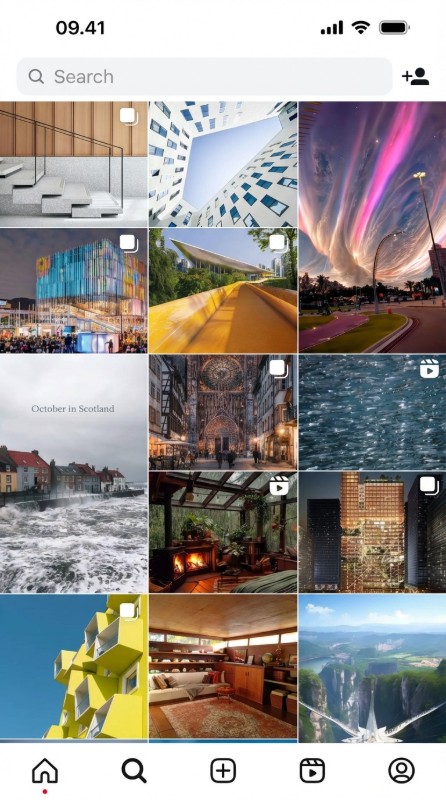
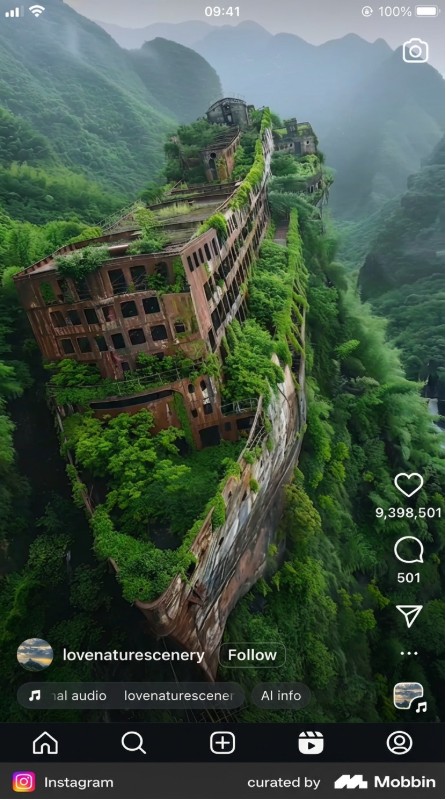
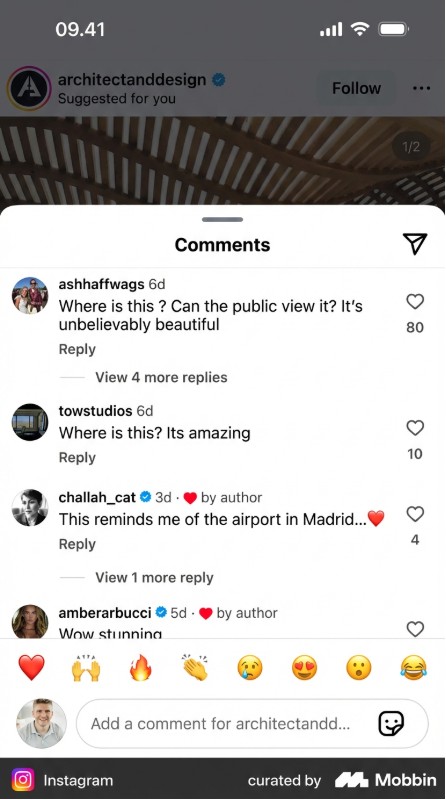
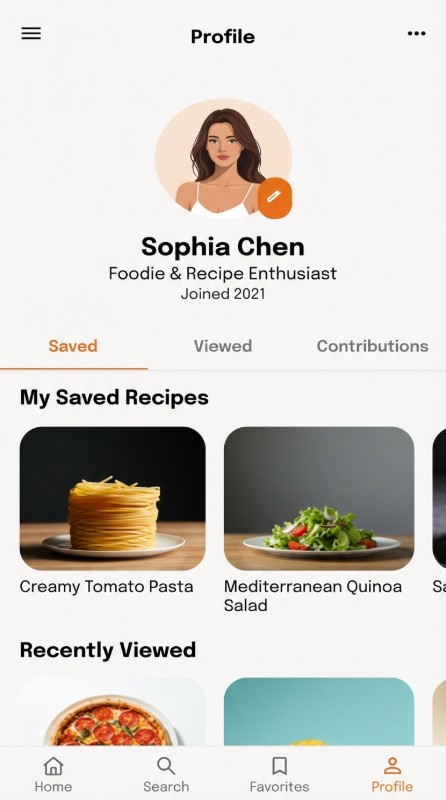
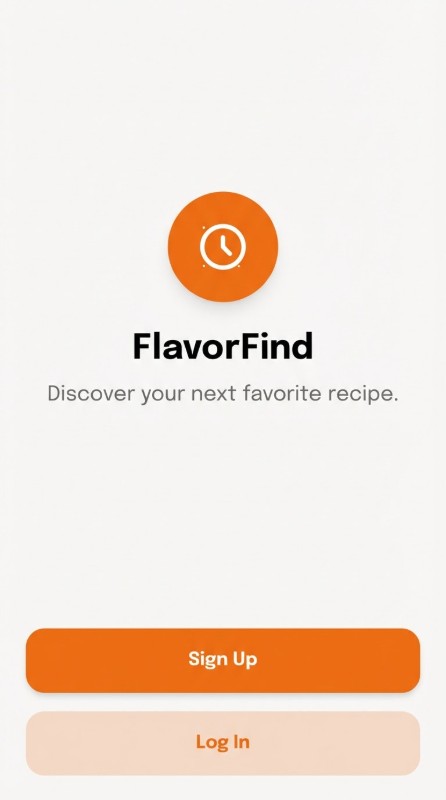
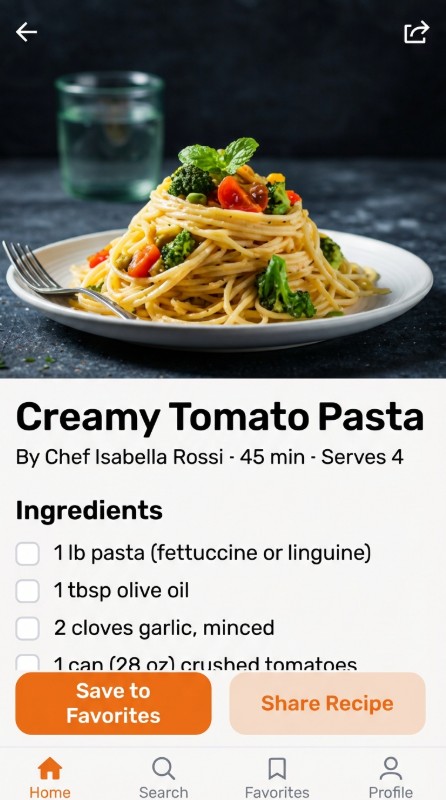
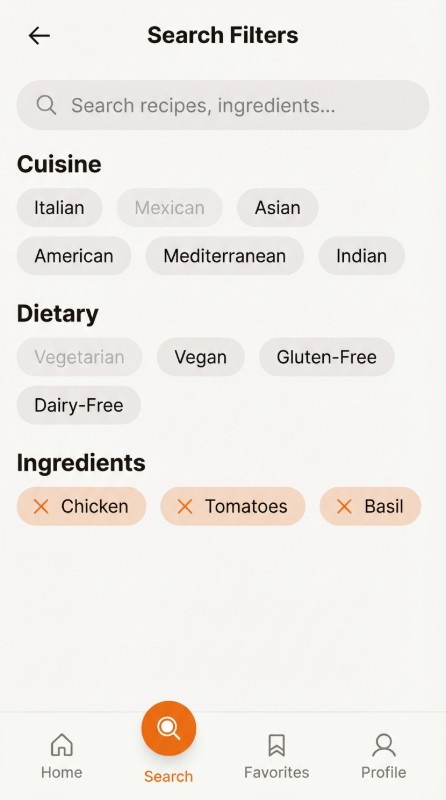
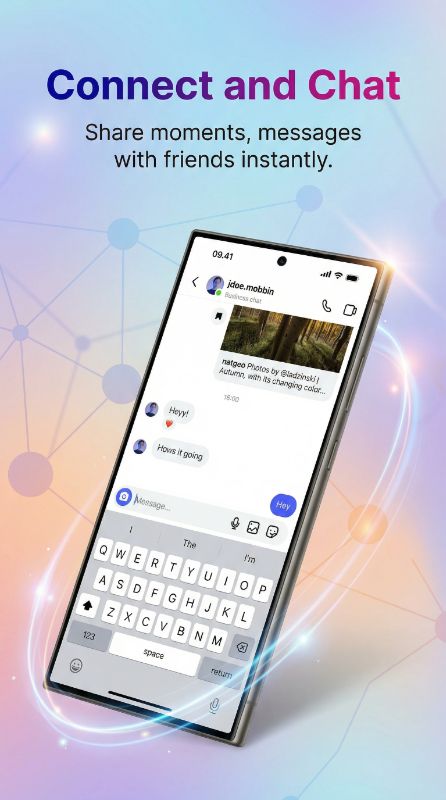
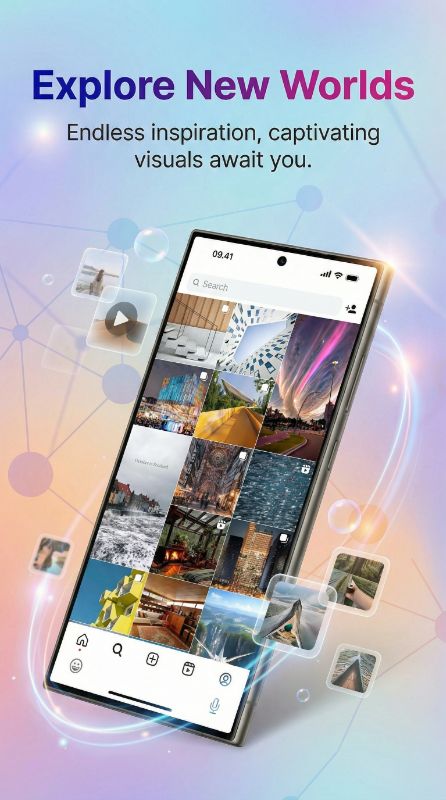
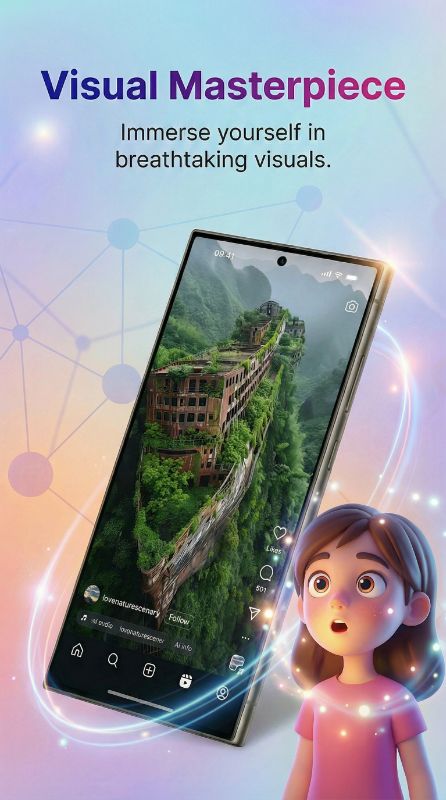
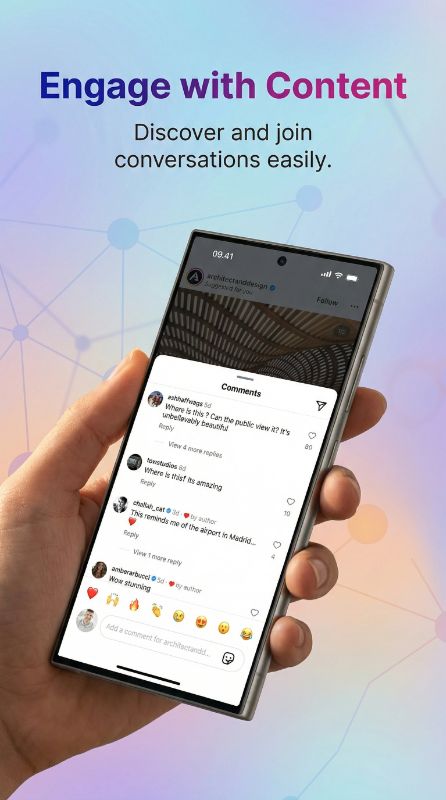
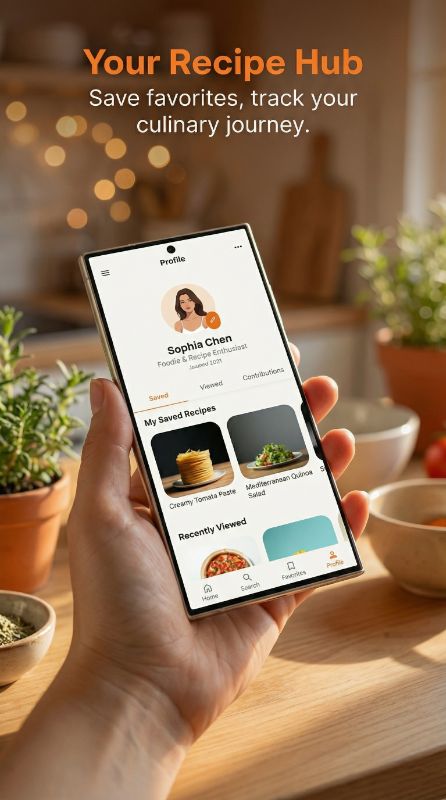
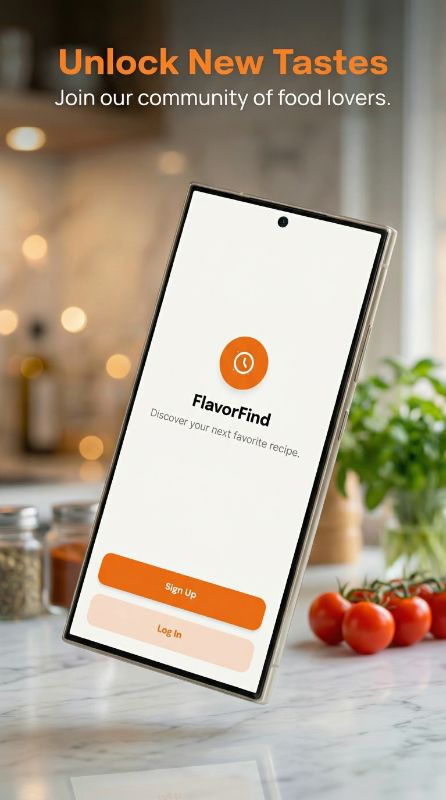
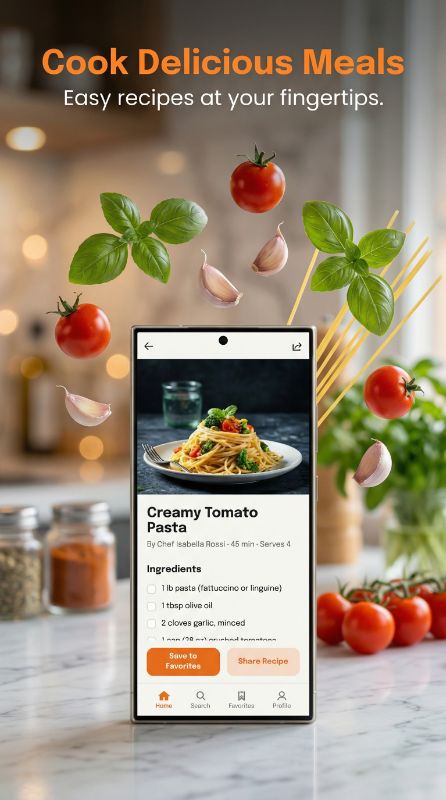
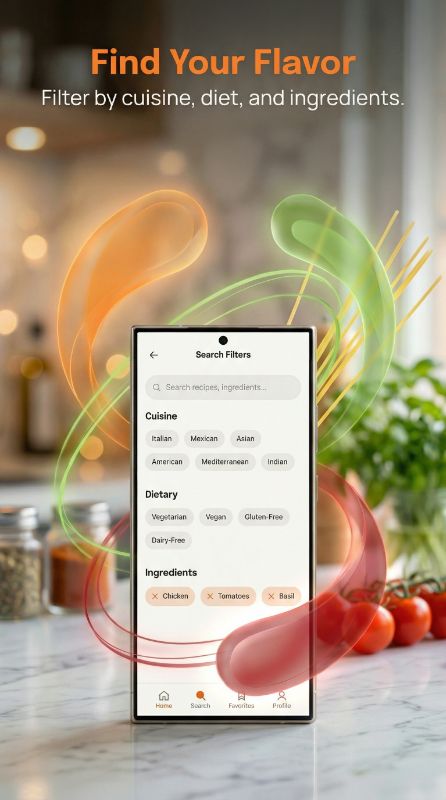
How to Design Productivity App Screenshots That Convert
Translate features into outcomes. The best productivity listings open with the core benefit ("Everything organized in one place") on a clean, focused screen, then show the key workflows — capture, organize, collaborate — one per screenshot. Avoid showing dense, busy dashboards as your opener; they signal a steep learning curve. Use generous whitespace, one accent color, and concise captions. For SaaS, a screen that hints at cross-device sync or team collaboration broadens appeal.
What Top Productivity Apps Do in Their Screenshots
Top productivity apps use clean, device-framed screens with one benefit each and lots of whitespace — device-framed layouts convert better than full-bleed for utility apps.


Shows flexible blocks and workspaces in spacious, uncluttered frames that signal calm and control.


Leads with frictionless task capture and clean lists, one workflow per screen.


Leans on its award-winning minimalist design and generous whitespace to read as premium and effortless.
Want screenshots like these for your productivity app?
You don't need a designer to match this quality. Paste any App Store link into AppMockup and our AI recreates that polished style — device frames, backgrounds, and marketing copy — for your own screenshots in minutes.
Screenshots shown are from each app's public App Store listing and remain © their respective owners, displayed here for educational analysis.
Device-framed
Productivity buyers evaluate the interface itself — clarity and calm are the product. Device-framed screens on minimal backgrounds let the clean UI do the selling.
Palette that fits productivity
Restrained, minimal palettes — lots of whitespace with a single confident accent — convey focus and calm. Monochrome or near-monochrome backgrounds read as premium and uncluttered.
Why Productivity Teams Use AppMockup
Everything you need to ship a high-converting productivity store listing — without a designer.
Ready in 2 minutes
Turn raw productivity app screens into polished store assets in minutes, not hours of design work.
Store-compliant sizes
Exports the exact App Store and Play Store dimensions automatically, so your listing never gets rejected for size.
AI titles & backgrounds
AI writes productivity-appropriate headlines and generates on-brand backgrounds tailored to your screens.
Headline Angles That Work for Productivity Apps
- 1Control: "Everything in one place"
- 2Speed: "Capture ideas in a tap"
- 3Calm: "Your day, organized"
- 4Collaboration: "Work together, anywhere"
Productivity Apps to Study for Inspiration
Top productivity apps that set the bar for App Store and Play Store screenshots.
Rated by Real AppMockup Users
4.6from 182 user ratingsReal ratings from real usersAverage of 182 in-app ratings from signed-in AppMockup users, collected by our in-app feedback prompt as of November 2026. Every rating counts, including low ones: 5★ 143 · 4★ 20 · 3★ 9 · 2★ 5 · 1★ 5.Productivity App Screenshot FAQ
What should a productivity app screenshot lead with?
A single clear benefit ("Everything organized in one place") on a clean, focused screen — not a dense dashboard, which signals a steep learning curve. Then show one workflow per screenshot.
How should SaaS app screenshots look?
Minimal and calm: generous whitespace, one accent color, concise captions, and device-framed UI. A screen hinting at cross-device sync or team collaboration broadens appeal.
What colors suit productivity apps?
Restrained, near-monochrome palettes with a single accent read as premium and focused. Busy multi-color designs work against the "calm and in control" promise.
How does AppMockup generate app screenshots?
Upload your raw app screenshot and our AI adds the right device frame, a professional background, and marketing copy, then exports a store-ready image. Most mockups are done in under two minutes — no design skills or Figma needed.
Is AppMockup free to use?
Yes. New users get 3 free credits with no credit card and no watermark. Paid plans start at $9.99/month for 25 screenshots, and unused credits roll over for up to 2 months. Cancel anytime.
What sizes does it export for the App Store and Play Store?
AppMockup outputs the correct dimensions automatically — the iPhone 6.9" Large Display (1290×2796) and 6.3" Medium Display (1206×2622), 13" iPad (2048×2732), and iPhone Duo inner + outer displays for the App Store, and 9:16 portrait for Google Play. You never have to look up specs.
Can I edit a screenshot after it is generated?
Yes. You can swap the device frame and download for free. AI-powered changes such as new titles, subtitles, or backgrounds cost 1 credit each because the image is fully regenerated.
Does it support iPhone, iPad and Android devices?
Yes. AppMockup supports the latest iPhone and iPad frames plus Android devices like Samsung Galaxy and Google Pixel, and it can convert iPhone mockups to iPad in one click.
Can I match another app’s screenshot style?
Yes. Paste any App Store or Play Store link and the AI fetches that app’s screenshots, analyzes the colors and layout, and applies the same style to yours.
Start with your platform
Related app categories
Generate for specific devices
Create Productivity App Screenshots in Minutes
Upload your raw screenshots and let AI generate store-ready productivity marketing assets — no design skills needed.